

Your computer doesn’t have enough free space (around 5GB) for the temporary files that are saved on your computer. You can solve this by either deleting files on your computer, or connecting a hard drive.
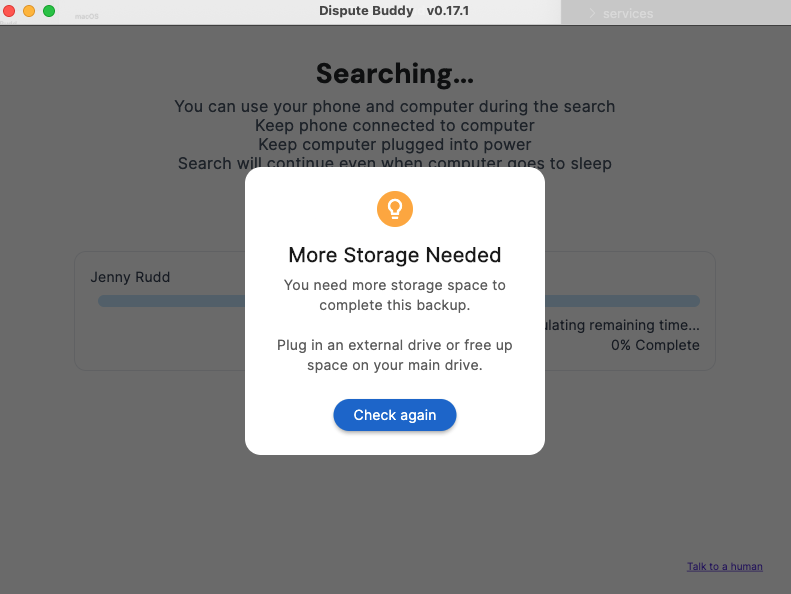
1. Check available space on your computer: Apple menu > System Settings > General > Storage
2. Go to a category and click its Info button to open it:
You can open the categories that have Info buttons to select and delete files
3. Restart your Mac, then open Dispute Buddy and try again
1. Restart your Mac to clear temporary locks and prepare the connection
2. Connect the hard drive to your Mac
3. Open Finder and check that the drive appears under Locations. If you don’t see it, go to Finder > Settings > Sidebar and enable ‘External disks’
4. Connect your iPhone to your Mac with a USB cable
5. Open the Dispute Buddy app and start again
1.Try a different port on your computer or a different cable.
2. Connect the drive directly to your Mac. Don’t use a hub.
3.. If the drive needs external power, make sure it’s plugged in and the power light is on.
4. In Finder > Settings > Sidebar, make sure External disks are enabled.
5. Go to Applications > Utilities> Disk utility. If the drive is grayed out, select and click Mount.
6. If the drive still won’t mount and you can erase it, back it up then re-format as exFAT (works on Mac and Windows) Warning: erasing deletes everything on the drive.
7. Reboot your Mac and reconnect the drive. Then relaunch Dispute Buddy.
If you need more help: Send us a WhatsApp: +61 468 852 935
Email us: hello@disputebuddy.co
Connect on LiveChat: here