

Make sure your iPhone is connected to your PC.
Unlock your iPhone. You may need to enter your passcode to "Trust this Computer."
Open iTunes.
Click the iPhone device icon (it can take several minutes to appear while Windows sets up the connection).
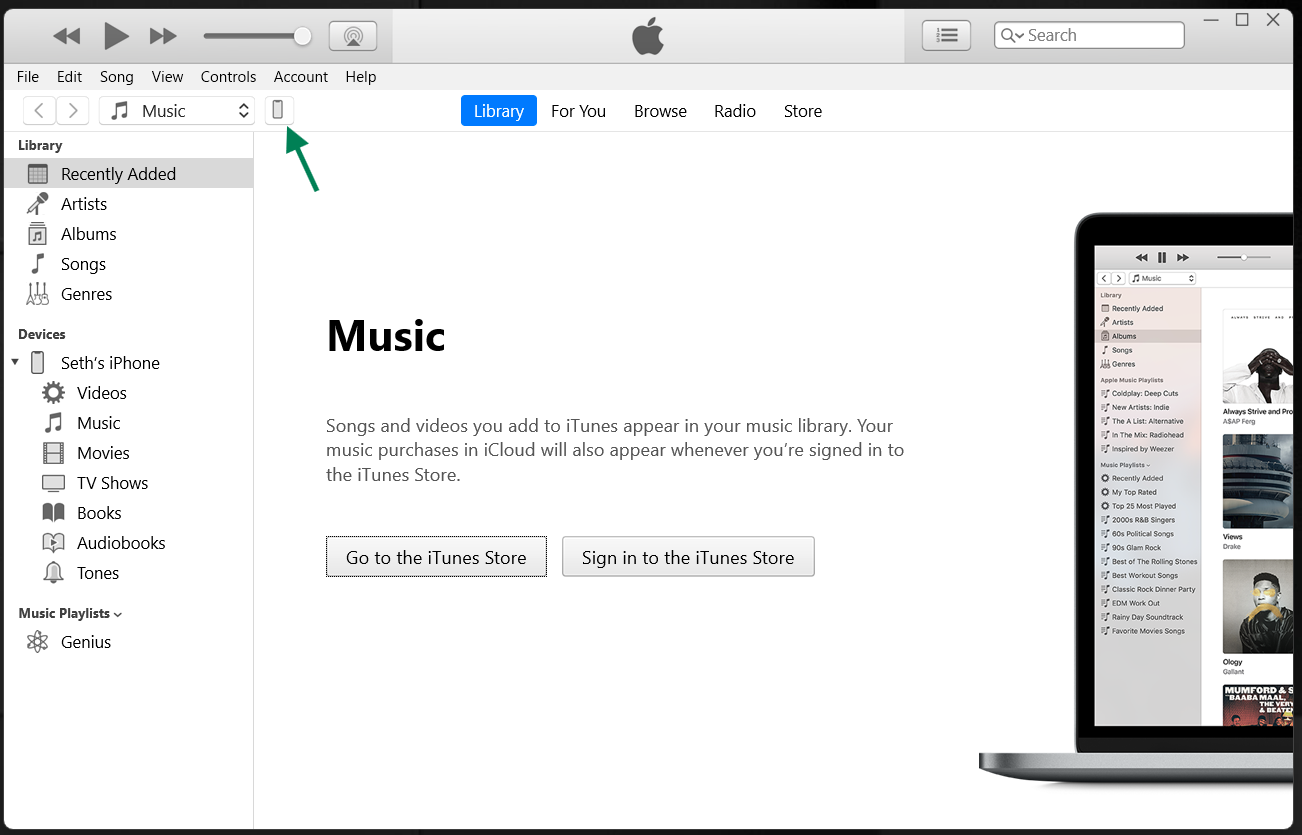
Untick "Encrypt local backup."
Can't turn off "Encrypt local backup"? Read here for help.
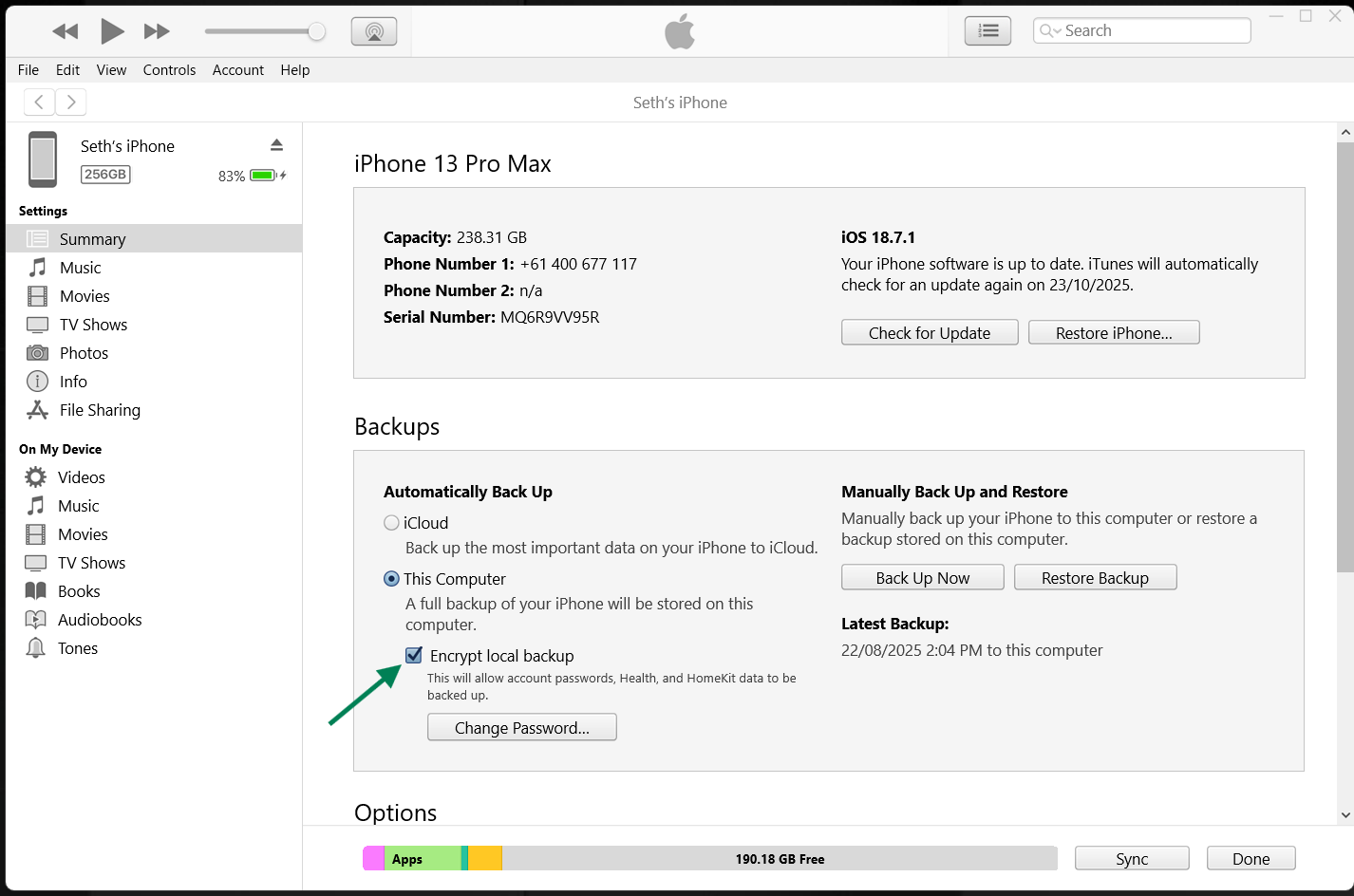
Type the password you used when you first set up encryption. If you dont know this password, you cannot continue.
Don't know your encryption password? Learn how to reset it here.
Click "Dont Encrypt," then stop the backup that automatically starts.
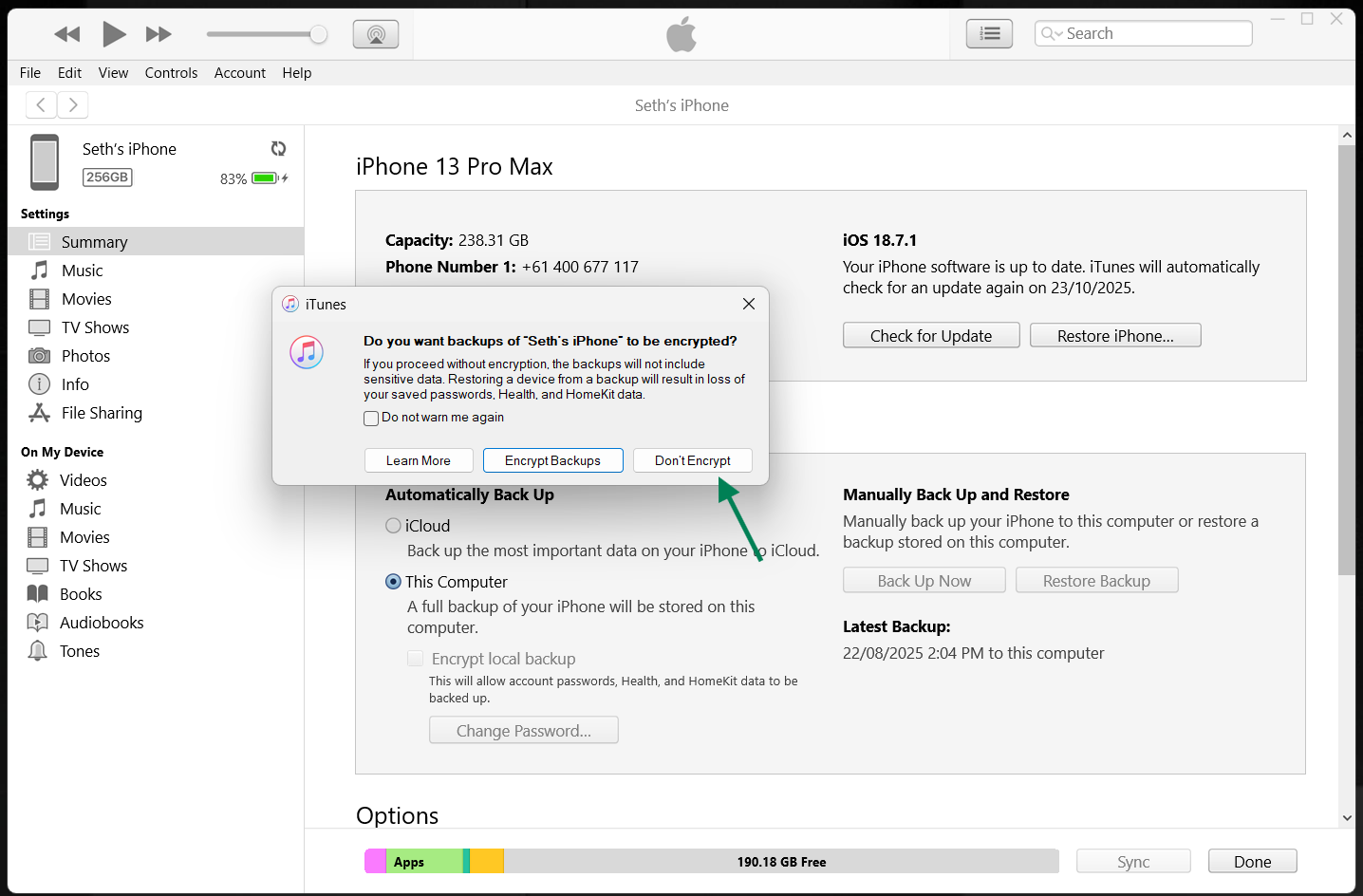
1. Make sure your iPhone is connected to your Mac.
2. Open Finder.
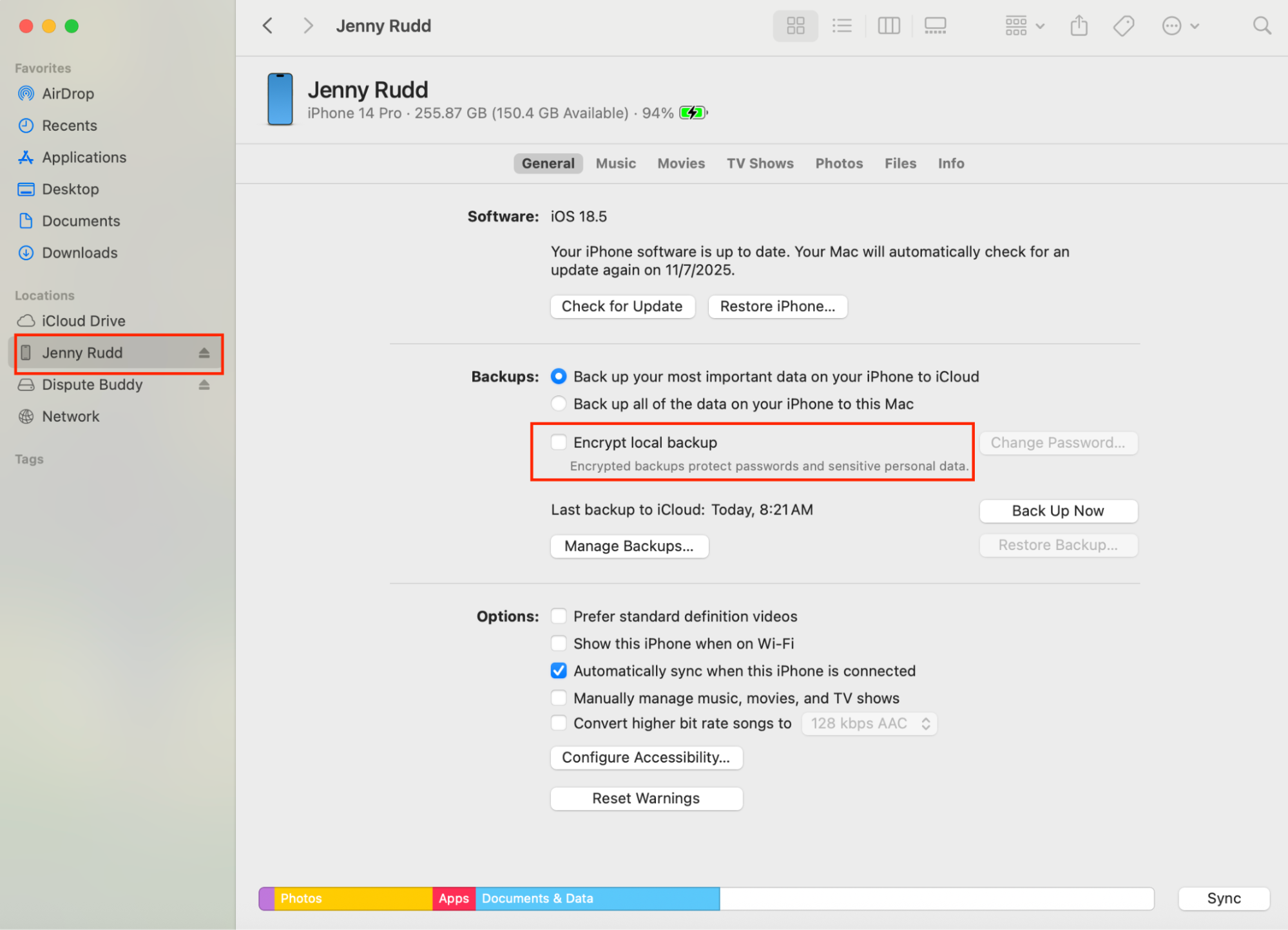
3. Click your iPhone under "Locations" in the left sidebar.
4. On your iPhone, tap "Trust This Computer" (if prompted) and enter your passcode.
5. On your Mac, click "Trust" or "Continue."
6. Go to the "General" tab in the Finder window.
7. Under Backups, select: "Back up all of the data on your iPhone to this Mac."
8. Make sure "Encrypt local backup" is unchecked.
Can't turn off "Encrypt local backup"? Read here for help.
Type the password you used when you first set up encryption. If you dont know this password, you cannot continue.
Don't know your encryption password? Learn how to reset it here.
Click "Dont Encrypt," then stop the backup that automatically starts.
1. Make sure your iPhone is connected to your Mac.
2. Open Finder.
3. Click your iPhone under "Locations" in the left sidebar.
4. On your iPhone, tap "Trust This Computer" (if prompted) and enter your passcode.
5. On your Mac, click "Trust" or "Continue."
6. Go to the "General" tab in the Finder window.
7. Under Backups, select: "Back up all of the data on your iPhone to this Mac."
8. Make sure "Encrypt local backup" is unchecked.
Can't turn off "Encrypt local backup"? Read here for help.
Type the password you used when you first set up encryption. If you dont know this password, you cannot continue.
Don't know your encryption password? Learn how to reset it here.
Click "Dont Encrypt," then stop the backup that automatically starts.
1. Make sure your iPhone is connected to your Mac.
2. Open Finder.
3. Click your iPhone under "Locations" in the left sidebar.
4. On your iPhone, tap "Trust This Computer" (if prompted) and enter your passcode.
5. On your Mac, click "Trust" or "Continue."
6. Go to the "General" tab in the Finder window.
7. Under Backups, select: "Back up all of the data on your iPhone to this Mac."
8. Make sure "Encrypt local backup" is unchecked.
Can't turn off "Encrypt local backup"? Read here for help.
Type the password you used when you first set up encryption. If you dont know this password, you cannot continue.
Don't know your encryption password? Learn how to reset it here.
Click "Dont Encrypt," then stop the backup that automatically starts.
1. Make sure your iPhone is connected to your Mac.
2. Open Finder.
3. Click your iPhone under "Locations" in the left sidebar.
4. On your iPhone, tap "Trust This Computer" (if prompted) and enter your passcode.
5. On your Mac, click "Trust" or "Continue."
6. Go to the "General" tab in the Finder window.
7. Under Backups, select: "Back up all of the data on your iPhone to this Mac."
8. Make sure "Encrypt local backup" is unchecked.
If you need more help: Send us a WhatsApp: +61 468 852 935
Email us: hello@disputebuddy.co
Connect on LiveChat: here