

1. Make sure your iPhone is connected to your PC.
2. Unlock your iPhone. You may need to enter your passcode to "Trust this Computer."
3. Open the Apple Devices app on your computer. (If you don't have it, download it from the Microsoft Store — search for "Apple Devices".)
4. Click the iPhone device icon (it can take several minutes to appear while Windows sets up the connection).
5. Untick "Encrypt local backup."
6. Type the password you used when you first set up encryption. If you don't know the password, see steps at the bottom of this page in 'How to delete your encryption password'
7. Click "Don't Encrypt," then stop the backup that automatically starts.
1. Make sure your iPhone is connected to your Mac.
2. Open Finder.
3. Click your iPhone under "Locations" in the left sidebar.
4. On your iPhone, tap "Trust This Computer" (if prompted) and enter your passcode.
5. On your Mac, click "Trust" or "Continue."
6. Go to the "General" tab in the Finder window of your computer
7. Under Backups, select: "Back up all of the data on your iPhone to this Mac."
8. Make sure "Encrypt local backup" is unchecked.
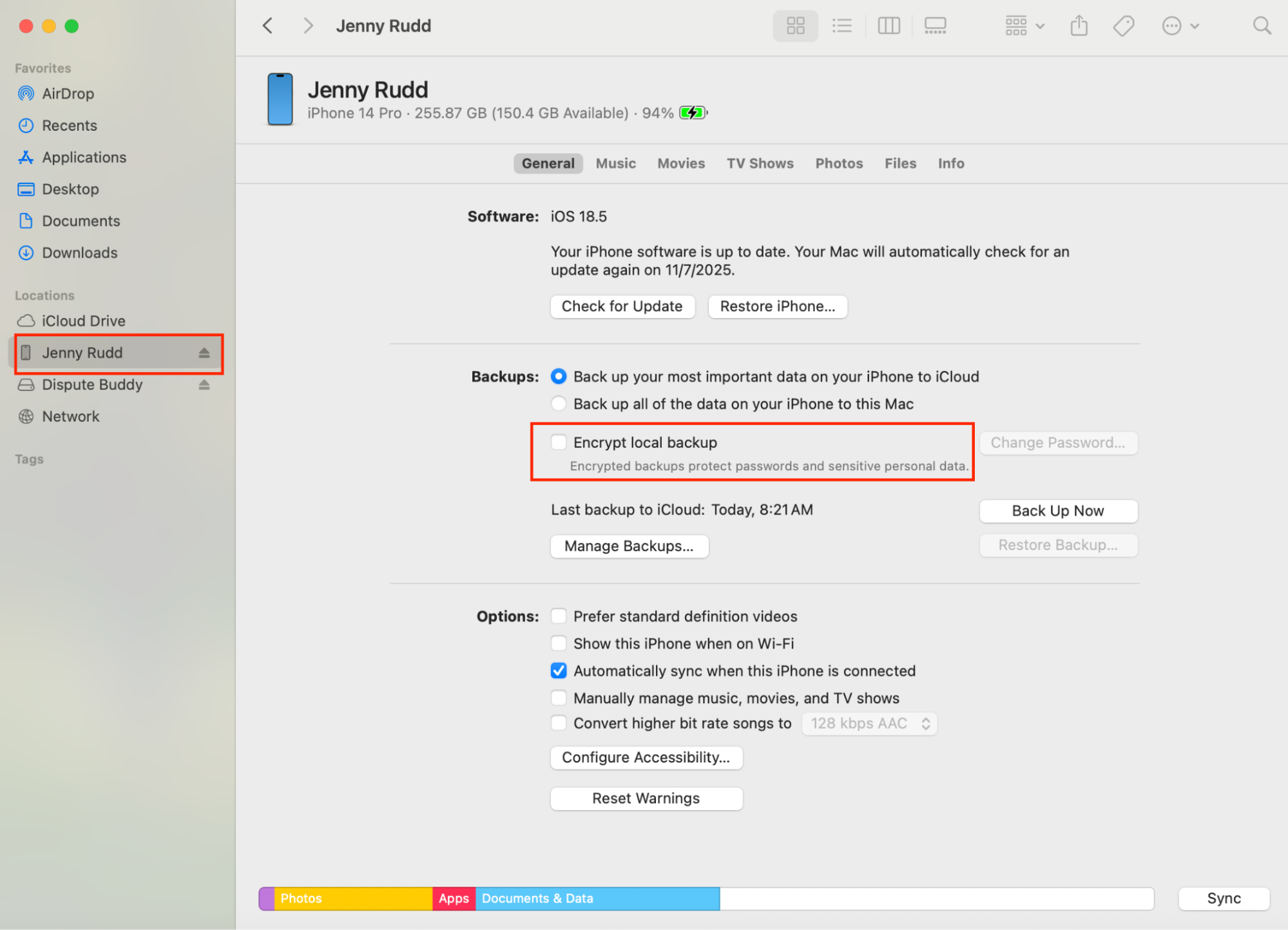
9. Type the password you used when you first set up encryption
10. If you can't remember setting up that password, follow the instructions below to delete it
If you don't know this password, you'll need to reset it.
On your iPhone, go to
Settings > General > Transfer or Reset iPhone > Reset > Reset All Settings.
This clears the backup encryption setting.
It wont delete apps, or photos or messages. They're all safe.
What It DOES NOT Delete
What It DOES Reset
If you need more help: Send us a WhatsApp: +61 468 852 935
Email us: support@disputebuddy.co
Connect on LiveChat: Start a live chat